Getting Started with Your New Copier / Printer
The following guide will walk you through the basic functions of the new copier system, including printing, copying, scanning, and releasing secure print jobs.
Before using the copier, please ensure that:
-
You have selected "AISD Secure Print" as your printer on your computer. Do NOT choose “AISD-SecurePrint on SVC-PSRV.allenisd.net”
-
You are prepared to authenticate using either your district badge or your unique PIN.
-
You have completed your initial login to uniFLOW and received your PIN via district email, if you plan to use PIN authentication.
The new copier system provides enhanced security by holding print jobs until you authenticate at a device. This helps protect sensitive information, reduces unclaimed printouts, and allows you to release your print jobs from any district copier.
The following pages contain step-by-step instructions to help you successfully use the new copier system.
New Printer Selection Required
When printing from your computer, you will need to select the new printer: “AISD Secure Print”
This printer will securely hold your print job until you release the print on any district copier using your badge or PIN.
Option 1: Badge Printing
-
Badge printing will continue to work as it does today.
-
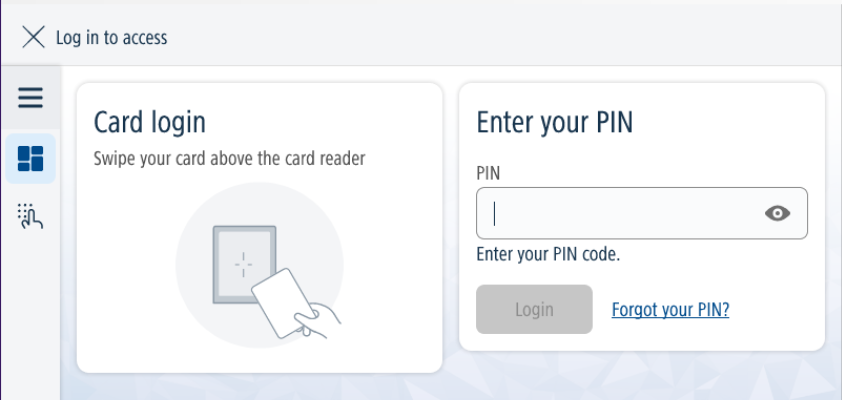
Simply scan your district badge at the copier to release your print jobs.
-
If it says that it does not recognize your badge:
-
Enter the Pin that Uniflow assigned to you
-
Hit “register badge”
-
Scan badge again
-
If it says it does not recognize the pin
-
Swipe badge again and it should take you to the log in page
-
It takes 2 times of scanning badge to register
-
If this still does not work – please go back to the home screen and enter the pin
Option 2: PIN Printing
-
If you prefer to use a PIN, navigate to uniFLOW and login using by clicking “Continue with AllenISD”
-
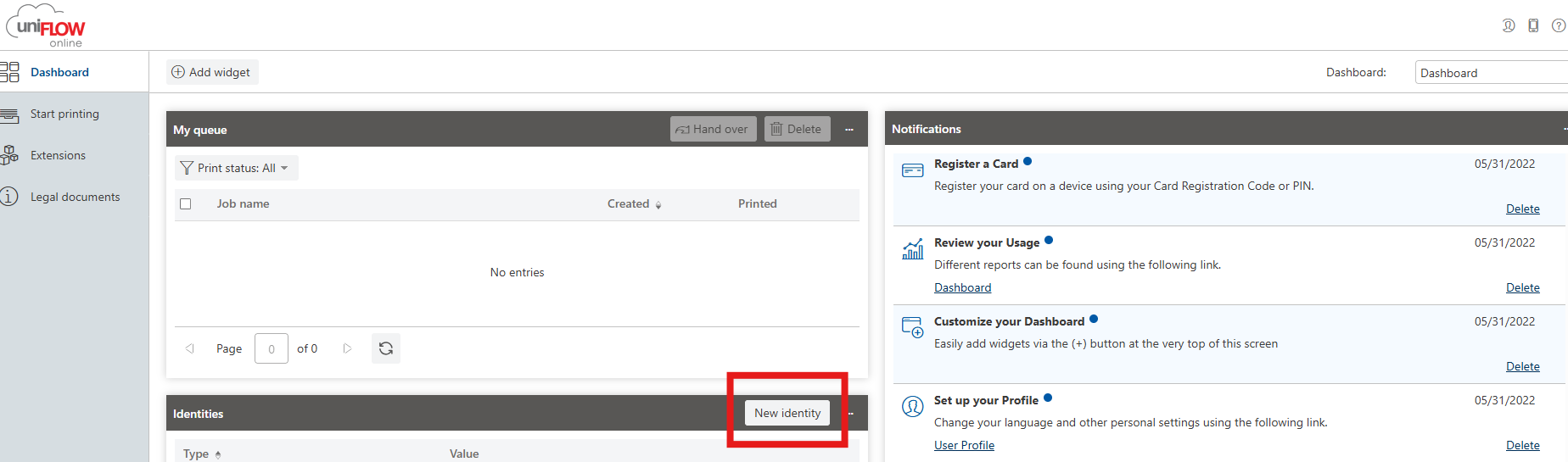
Once logged in, On the Dashboard page, locate the Identities section and click New Identity.
-
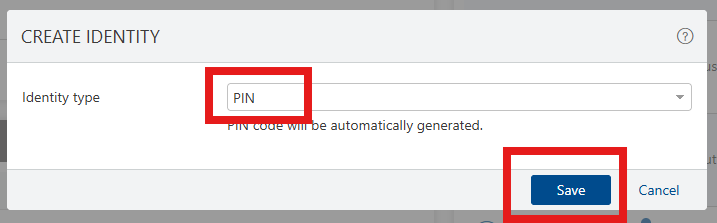
On the Create Identity window, click the Identity type drop-down menu and select PIN.
-
Click Save
-
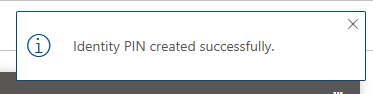
A confirmation message, "Identity PIN created successfully", will appear.
-
The system will automatically generate the PIN and send it to the email address associated with your account.
-
This is a unique PIN code linked to your account. DO NOT SHARE.
-
Use this PIN in the copier to release your print jobs.
-
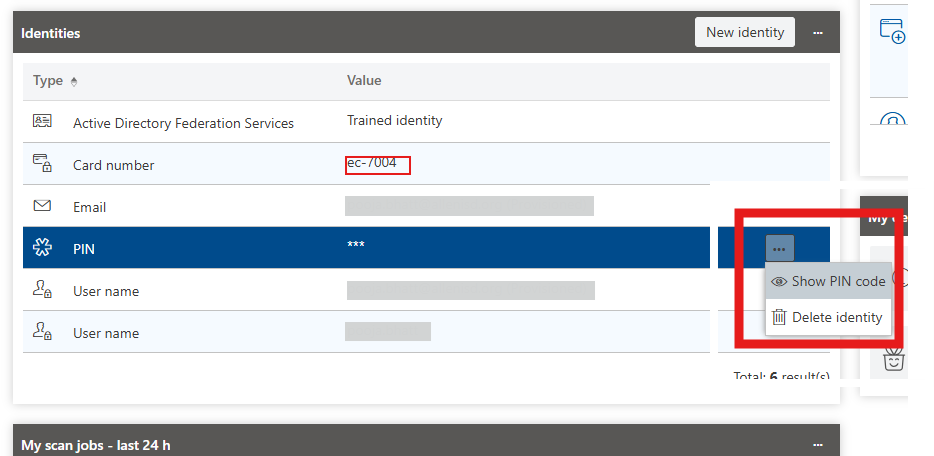
To retrieve the PIN in the future, log in to uniFLOW Online, navigate to the Identities section, locate the PIN identity, click the More Actions (⋯) menu next to the PIN, and select Show PIN code. The PIN will be displayed on the screen.
Printing
Once you have access, you have a few options to choose from
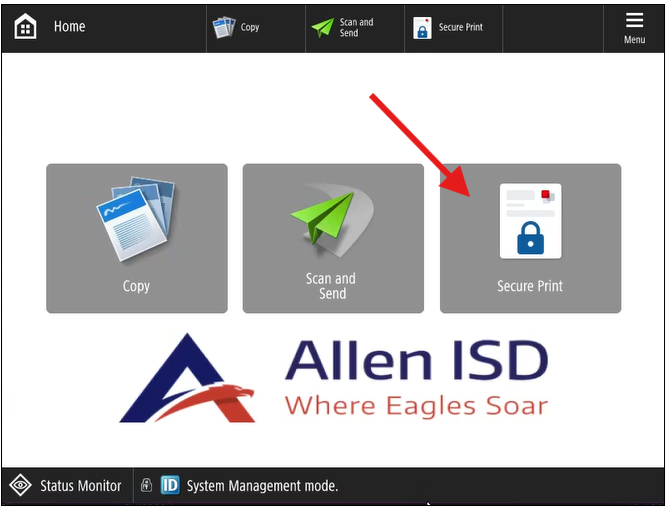
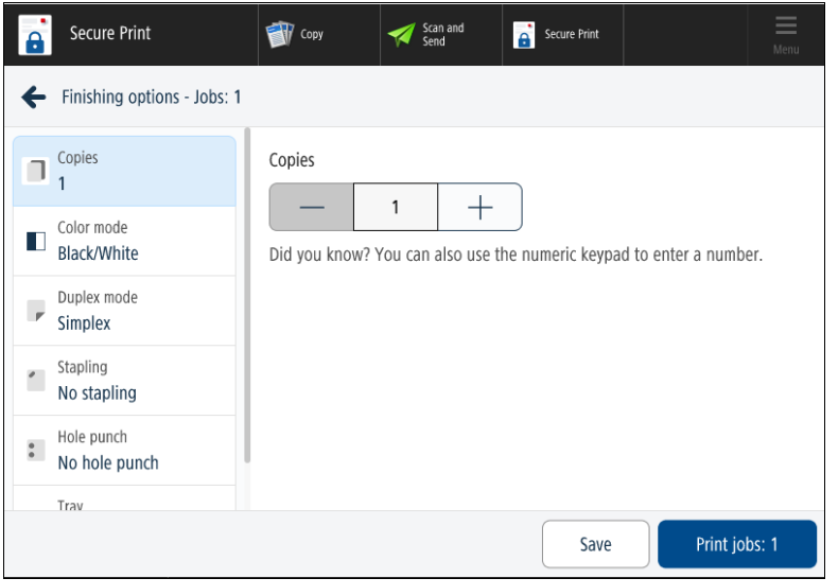
Select “Secure Print” to release your secure copies of your print
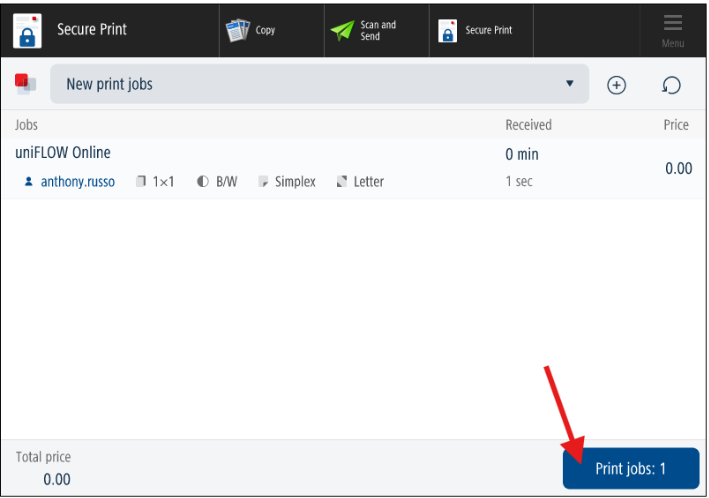
Select your print job and hit “Print Jobs”.
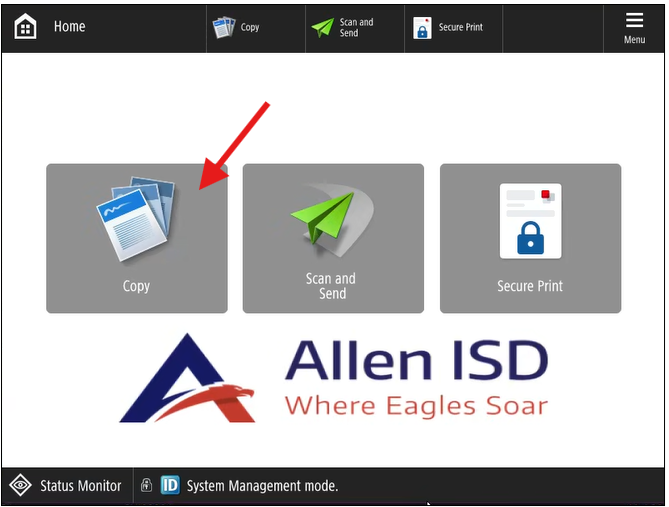
Making Copies